📦 Manage your incidents
Managing incidents correctly is key to increasing your delivery rate and ensuring that as many orders as possible reach your customers.
Go to the Orders > Incidents section (if you work with several countries, don't forget to select the country you are going to manage).
📋 Incident tabs
Within this section you will find several tabs with different statuses:
📌 All
This tab displays all incidents. It is the sum of all available tabs.
⚠️ Important:
The only tabs from which you can contribute a solution are:
- Pending resolution
- 1st absent
We recommend checking it daily.
🟠 Pending resolution
Orders with issues pending resolution.
🟡 1st absentee
Orders that were first attempted for delivery but were marked as unavailable; the delivery company will attempt delivery again on the next business day. While resolving these issues is not mandatory, we recommend being proactive and addressing them to improve your delivery rate.
🟣 Solution sent
Orders with issues and solutions provided.
d) 🟢 Pdte. delivered
Orders with issues that have been delivered without a solution being provided.
e) 🔴 President rejected
Orders with issues that have been returned without a solution being provided.
f) 🟣🟢 Solution sent delivered
Orders with issues, solutions provided, and delivered.
g) 🟣🔴 Solution sent rejected
Orders with issues, solutions provided, and returned.
h) 🔘 Pick up at agency
Orders with issues that were marked for pickup at the agency.
i) 🔘🟢 Pick up at agency delivered
Orders with issues that were marked for pickup at the agency and have been delivered.
j) 🔘🔴 Pick up at agency rejected
Orders that were marked for pickup at the agency and have been returned due to the deadline.
🔎 View details of an incident
To view information about an incident, click on the three dots and then on "View details".
Within the incident report you will be able to check:
- ℹ️ Order ID
- 🚛Carrier
- 🔎Tracking
- 📅Date and time of the incident
- 📦 Type of incident
- 🚚 Notes made by the delivery driver
- 📝 Incident status
- 📜 Incident history
ℹ️ Available solutions
Once you have reviewed the information, you can choose the "Contribute a solution" option from there, or you can close the pop-up window, click on the three dots and then on "Contribute a solution":
🚚 CTT
💬 Managing with client
Select this option if you have tried contacting the customer but haven't received a solution yet. The issue will remain open so you can address it again later.
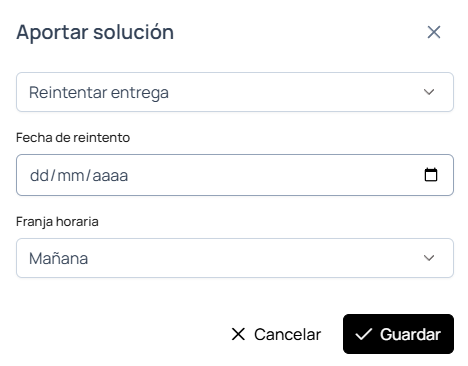
🚚 Retry delivery
Select this option if, after contacting the customer, you have arranged a new delivery date. You will be able to specify the day and time slot.
🏡 Change of address
Select this option if the customer requests that the next attempt be made at a different address, as you can modify the details.
🏣 Pick up at Agency
Select this option if the customer indicated that they wish to pick up their order at the destination agency.
🔁 Request a refund
Select this option if the customer indicated that they will not receive their order.
🚛 GLS
💬 Managing with client
Select this option if you have tried contacting the customer but haven't received a solution yet. The issue will remain open so you can address it again later.
✏️ Provide a solution
If you have managed to contact your client and have arranged a new delivery, you must write the solution in the Solution / Observations field and click on "Save".
- Try to make the solution specific and brief, and use friendly language.
- Please note that refund change requests are not handled from here; you must request them from the dropshipper support team.
🏣 Pick up at Agency
Select this option if the customer indicated that they wish to pick up their order at the destination agency.
🔁 Request a refund
Select this option if the customer indicated that they will not receive their order.
🚚 TIPSA
💬 Managing with client
Select this option if you have tried contacting the customer but haven't received a solution yet. The issue will remain open so you can address it again later.
If you have managed to contact your client and have arranged a new delivery, you must write the solution in the Solution / Observations field and click on "Save".
- Try to make the solution specific and brief, and use friendly language.
- Please note that refund change requests are not handled from here; you must request them from the dropshipper support team.